
Set up your tax year
Follow the six-step setup to enter your income, household and goals and get your first tax-saving plan.
The first time you sign in, SavingTax guides you through a short setup for the tax year. Estimates are fine, and you can change anything later.
Tap Start setup to begin. If you leave part-way through, the button says Continue setup and takes you back to where you stopped.
The steps
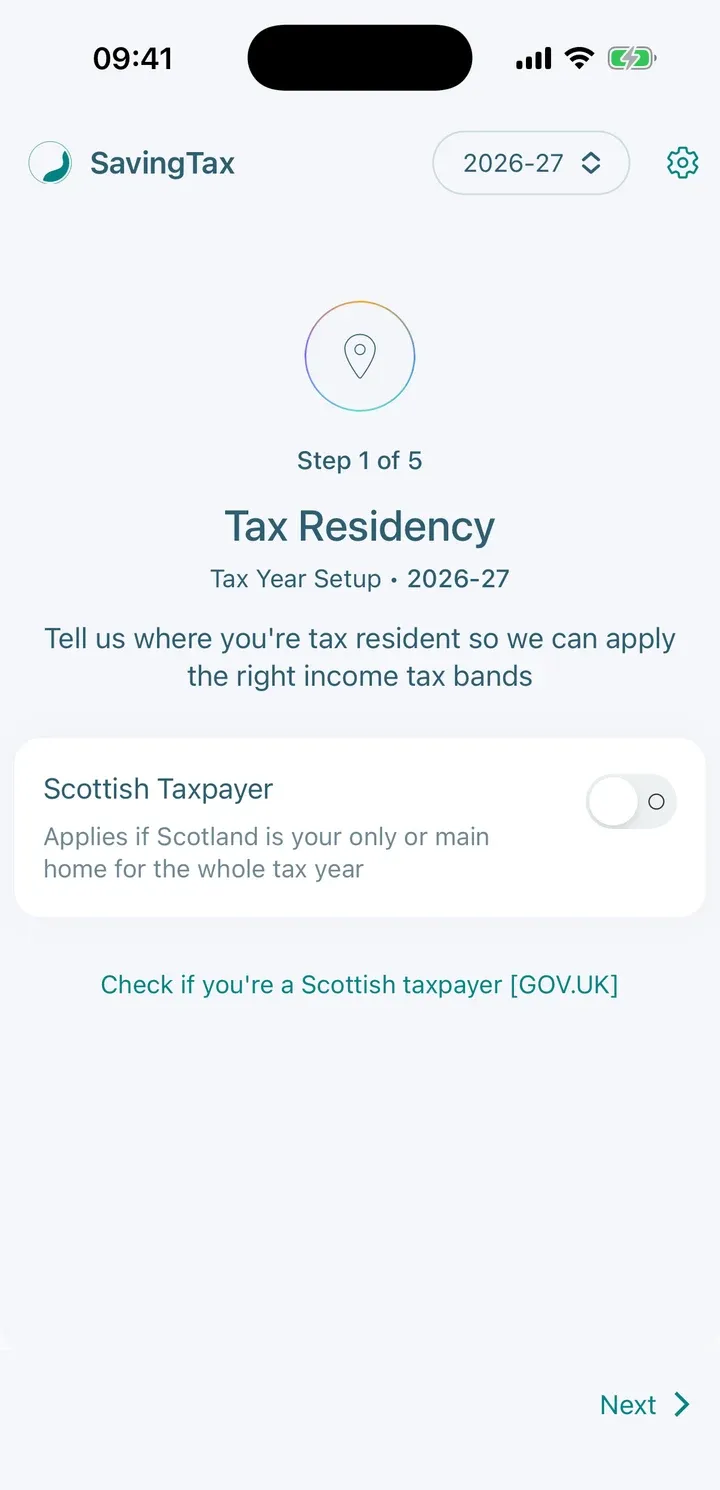
1. Tax Residency
Switch on Scottish Taxpayer if Scotland is your only or main home for the whole tax year. This makes sure the right income tax bands are used. If you’re not sure, tap Check if you’re a Scottish taxpayer to read the GOV.UK guidance.
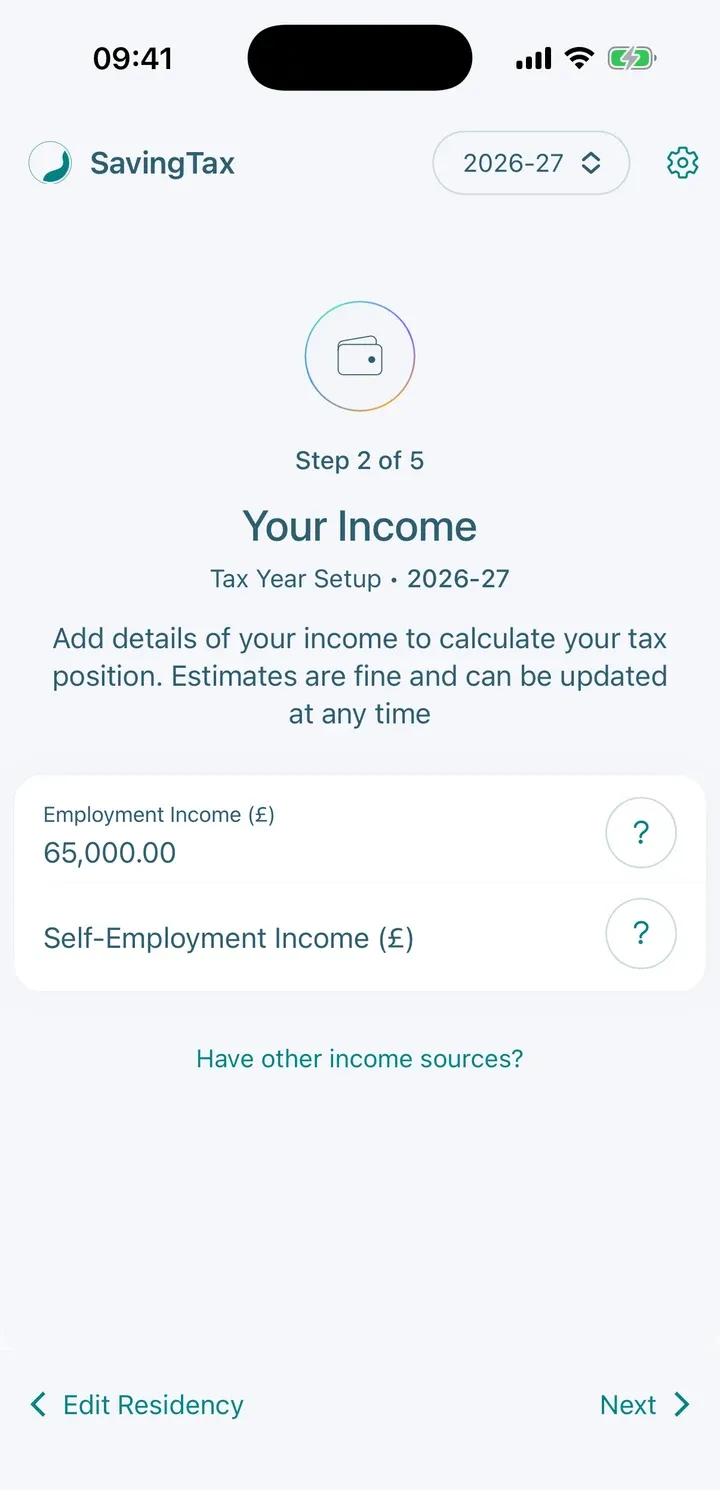
2. Your Income
Add your Employment Income (£) and your Self-Employment Income (£). Use your gross (pre-tax) amounts. Tap the small i buttons to see what counts as each. To add other income such as a second job, savings interest, dividends or rental income, tap Have other income sources? (these need Premium).
For more detail on the fields, see Add your income and details.
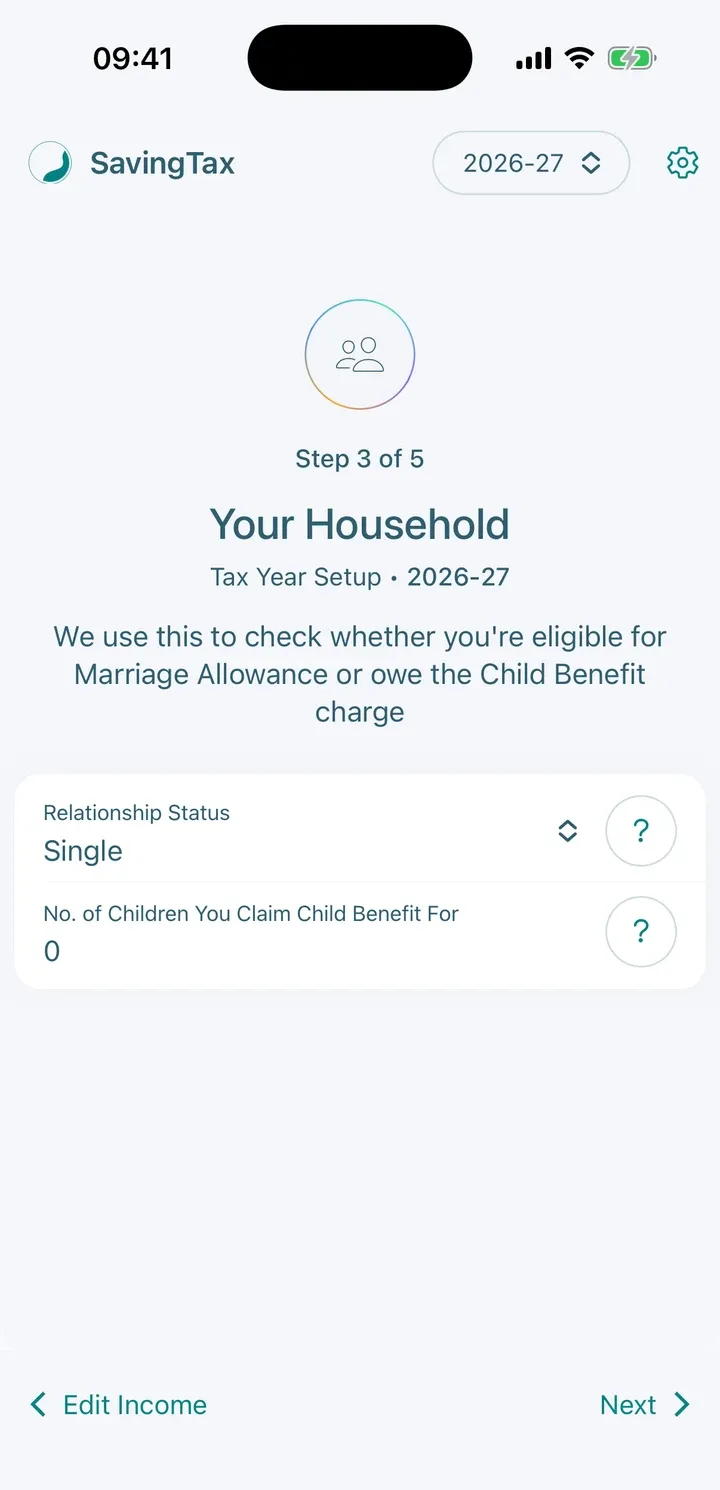
3. Your Household
Answer the questions about your relationship status, your partner’s income and any children. SavingTax uses them to check whether you could claim Marriage Allowance or whether the High Income Child Benefit Charge applies to you. You need to answer the Child Benefit questions to continue.
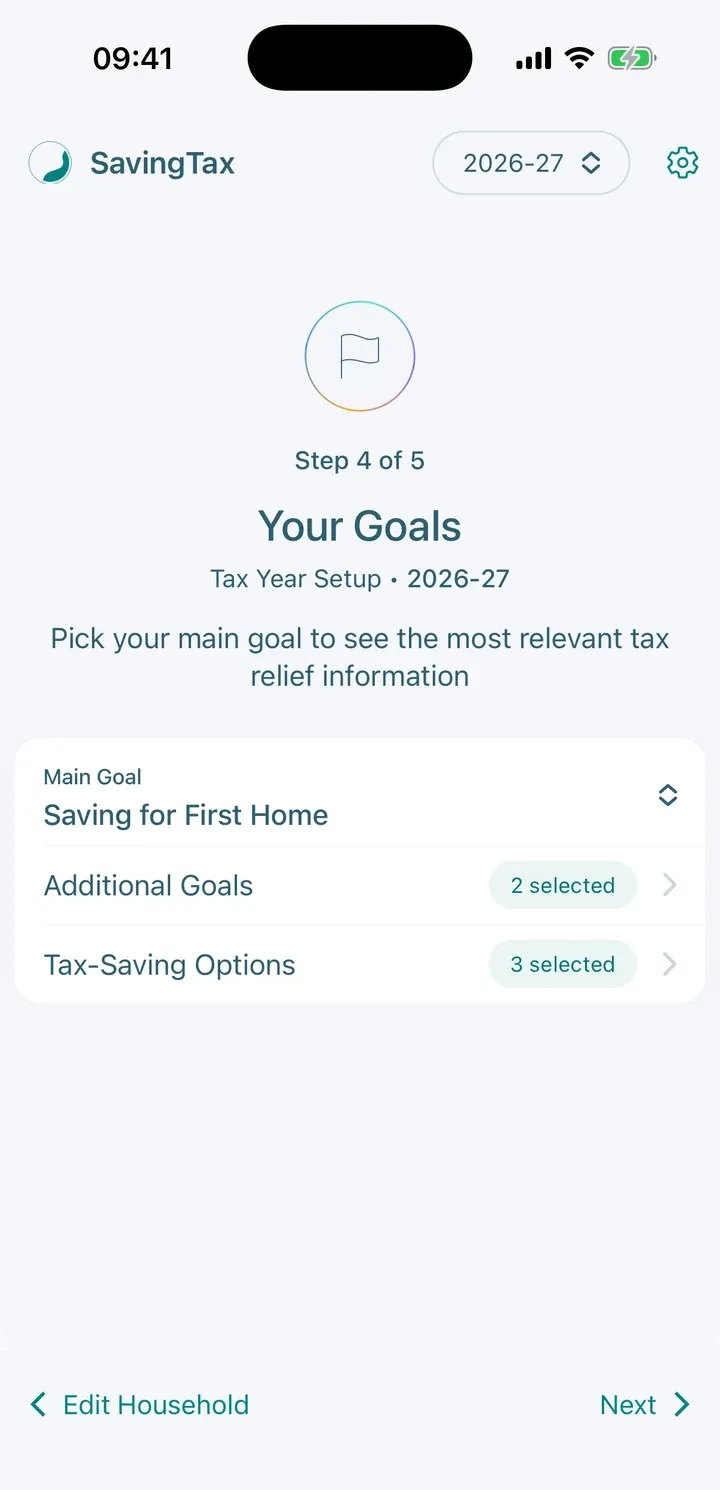
4. Your Goals
Pick your main goal and choose the tax-saving options you want in your plan. See Set your financial goals.
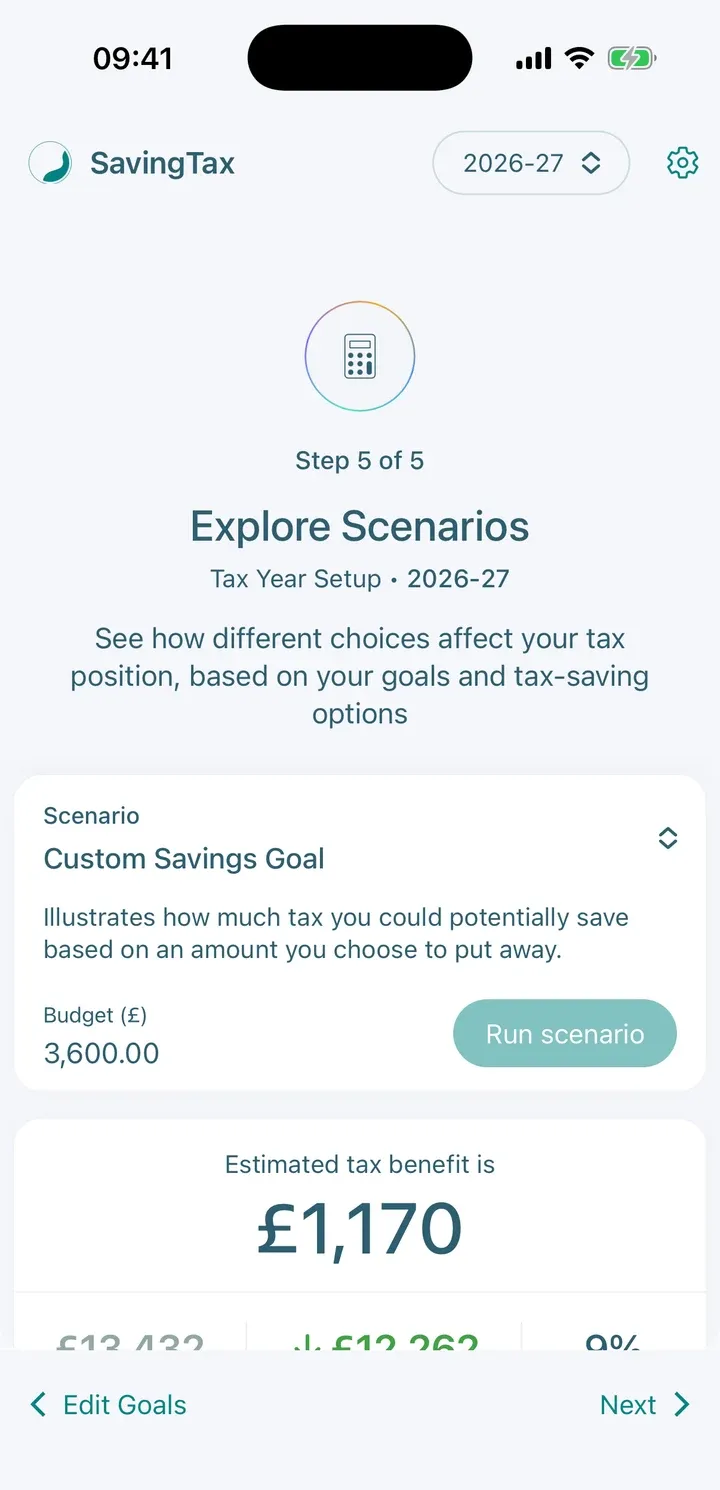
5. Explore Scenarios
Run a scenario to see how your choices change your tax, then save it. You need to run and apply a scenario to move on. See Run a tax-saving scenario.
Setup doesn’t ask about workplace pension contributions, so this first estimate leaves them out. Once you add them in Details and run the scenario again, your estimated tax benefit will usually be higher.
6. Your plan is ready
Tap Continue to open the app with your plan. From here you can record your contributions each month.
Good to know
- You can go back to an earlier step with the button at the bottom left of the screen.
- If you already used the app last tax year, you’ll see Start with last tax year’s details. It copies your previous details so you only update what has changed.
- SavingTax gives estimates and general information. It isn’t personal financial advice.