
Turn on two-factor authentication
Add an extra check to your sign-in with an authenticator app, and keep backup codes in case you lose your phone.
Two-factor authentication (2FA) asks for a 6-digit code from an authenticator app each time you sign in, on top of your normal sign-in. It stops someone getting into your account even if they know your password.
You will need an authenticator app on your phone, such as Google Authenticator or Authy.
Turn it on
- Open the app and go to Settings.
- Under Account, switch on Enable 2FA Security.
- Open your authenticator app and scan the QR code on screen. If you can’t scan it, tap Open Authenticator App, or copy the secret and paste it into your authenticator app.
- Enter the 6-digit code your authenticator app now shows. The app checks it as soon as you type the last digit, or you can tap Verify and Enable 2FA.
- Save your backup codes (see below), then tap Done.
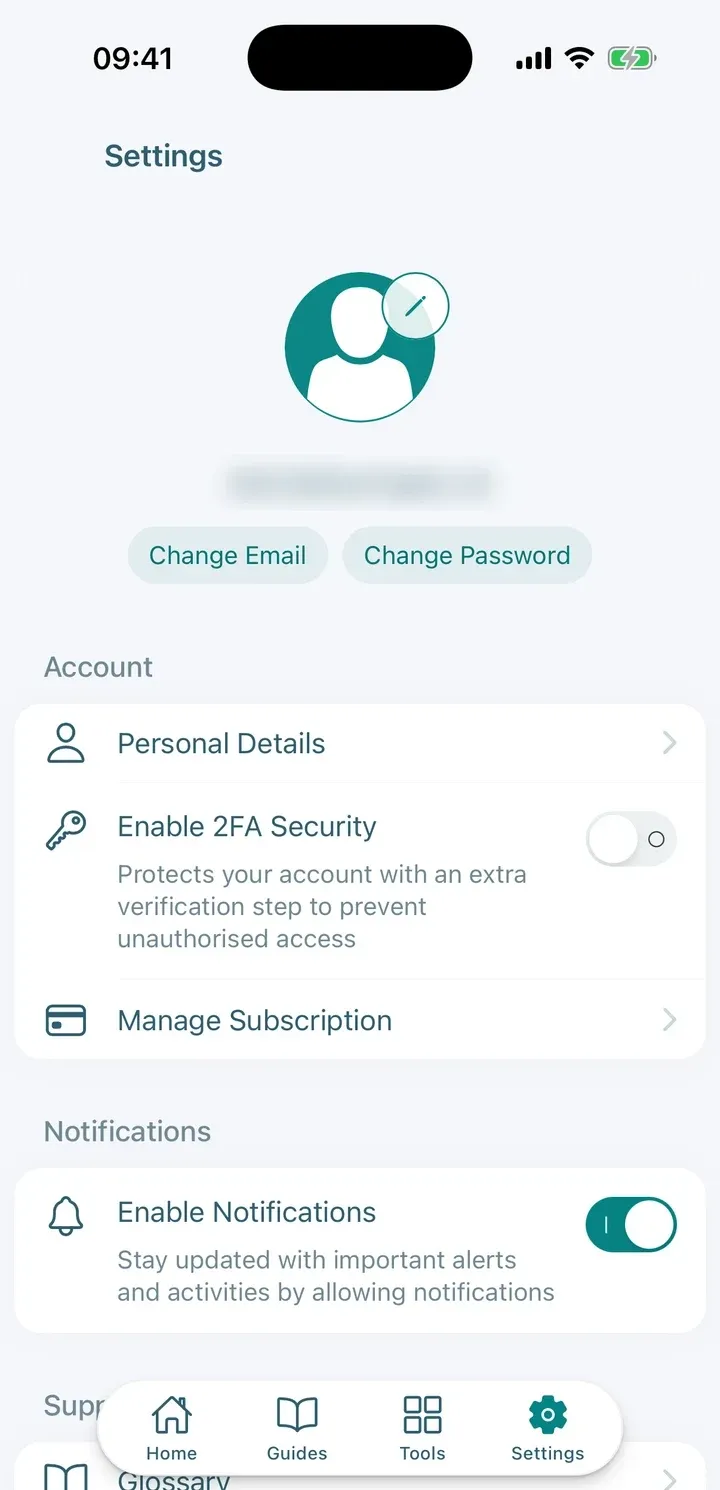
Save your backup codes
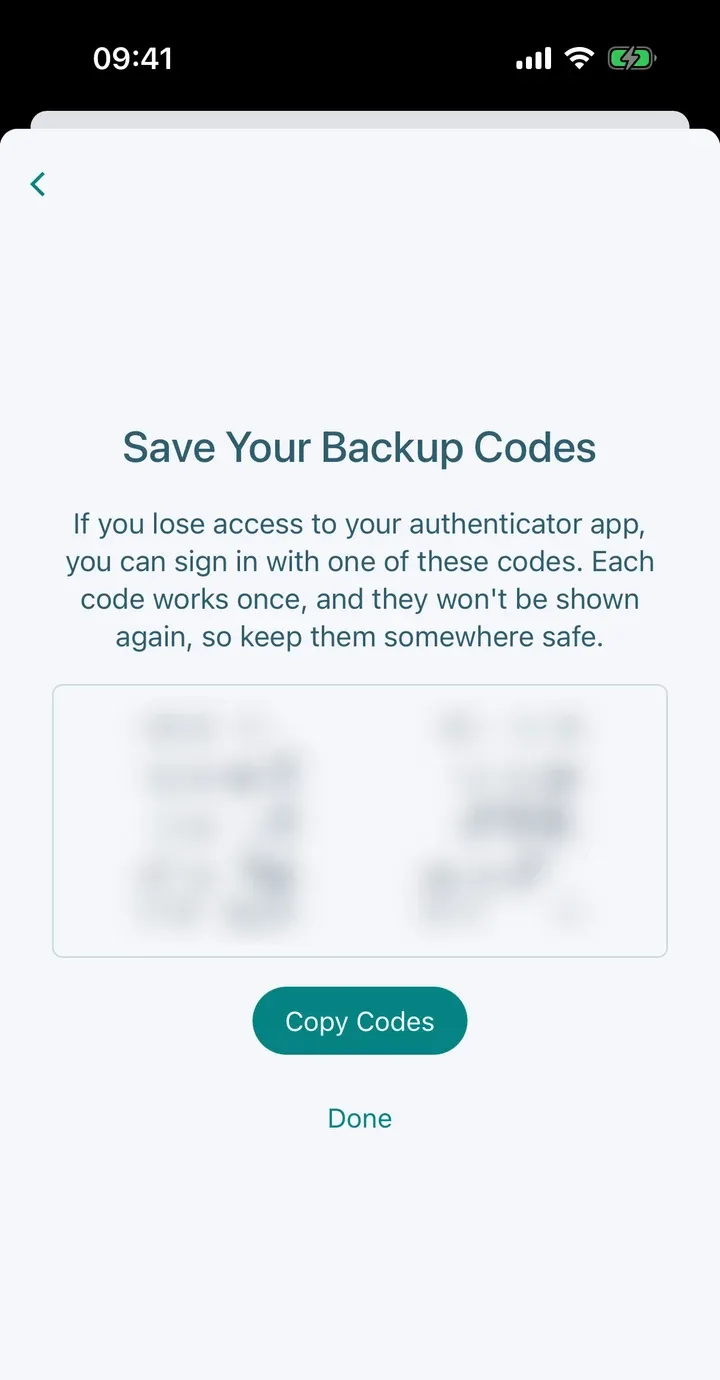
Right after you turn 2FA on, the app shows a list of backup codes. If you lose your phone or can’t open your authenticator app, a backup code lets you sign in.
- Each code works once.
- The app won’t show them again, so tap Copy Codes and store them somewhere safe, such as a password manager.
- If the codes don’t appear, tap Try Again. Without backup codes you could be locked out if you lose your authenticator app.
Turn it off
- Go to Settings and switch off Enable 2FA Security.
- Confirm with Disable 2FA.
- Enter a current code from your authenticator app. If you don’t have it, tap Use a backup code and enter one of your saved backup codes.
Tip: Turning 2FA off makes your account easier to break into. Leave it on unless you have a reason to remove it.
If you lose your phone
Sign in and use a backup code when the app asks for your 6-digit code. If you have no backup codes left, email support@savingtax.uk and we will help you recover your account.